
MCP Server: AI Assistant on Your Cloud Projects
Rillsoft Project 10 includes a built-in MCP server (Model Context Protocol). With it, an AI assistant such as Claude or Codex answers questions about the projects held in your Rillsoft Cloud tenant – bottlenecks, candidates for a task, deviations from the baseline – straight from the computed schedule. Rillsoft Cloud itself operates no AI service: the MCP server runs on the planner’s machine, and the cloud remains the Rillsoft Integration Server holding your projects, documents, portfolios and folders. The MCP server is the program’s AI interface: next to the user interface, the second way into the scheduling engine.
Local on your machine – deliberately enabled by you. The MCP server belongs to Rillsoft Project 10 and runs locally on your machine. It is not part of the Rillsoft Integration Server. To use it, you must explicitly enable it in the settings of Rillsoft Project 10. You can also run it in read-only mode: the AI assistant can then read information via MCP but cannot make any changes.
How it fits together
Three parties with clearly separated roles:
- Rillsoft Project 10 on the planner’s machine. This is where the MCP server runs – inside the visible, running application, reachable only at
127.0.0.1. It exposes the open project and the server functions of the signed-in tenant as tools. - Rillsoft Cloud. The Rillsoft Integration Server hosted by Rillsoft holds the projects, documents, portfolios and folders of your tenant. It contains neither an MCP server nor an AI service; it only sees the usual requests from Rillsoft Project.
- Your AI client. Claude, Codex or another MCP client connects to the local endpoint on your machine – not to the cloud. What the client transmits to its AI provider is governed by that provider’s privacy policy.
Signing in to the Integration Server happens in Rillsoft Project as before. No credentials are accepted via MCP; the AI assistant works within the session and the permissions of the signed-in user.
What the planner asks
A connected assistant answers questions straight from the computed schedule of the open cloud project:
- Who is overloaded next week? – the warning lists for delayed, overloaded and unassigned tasks, across projects too.
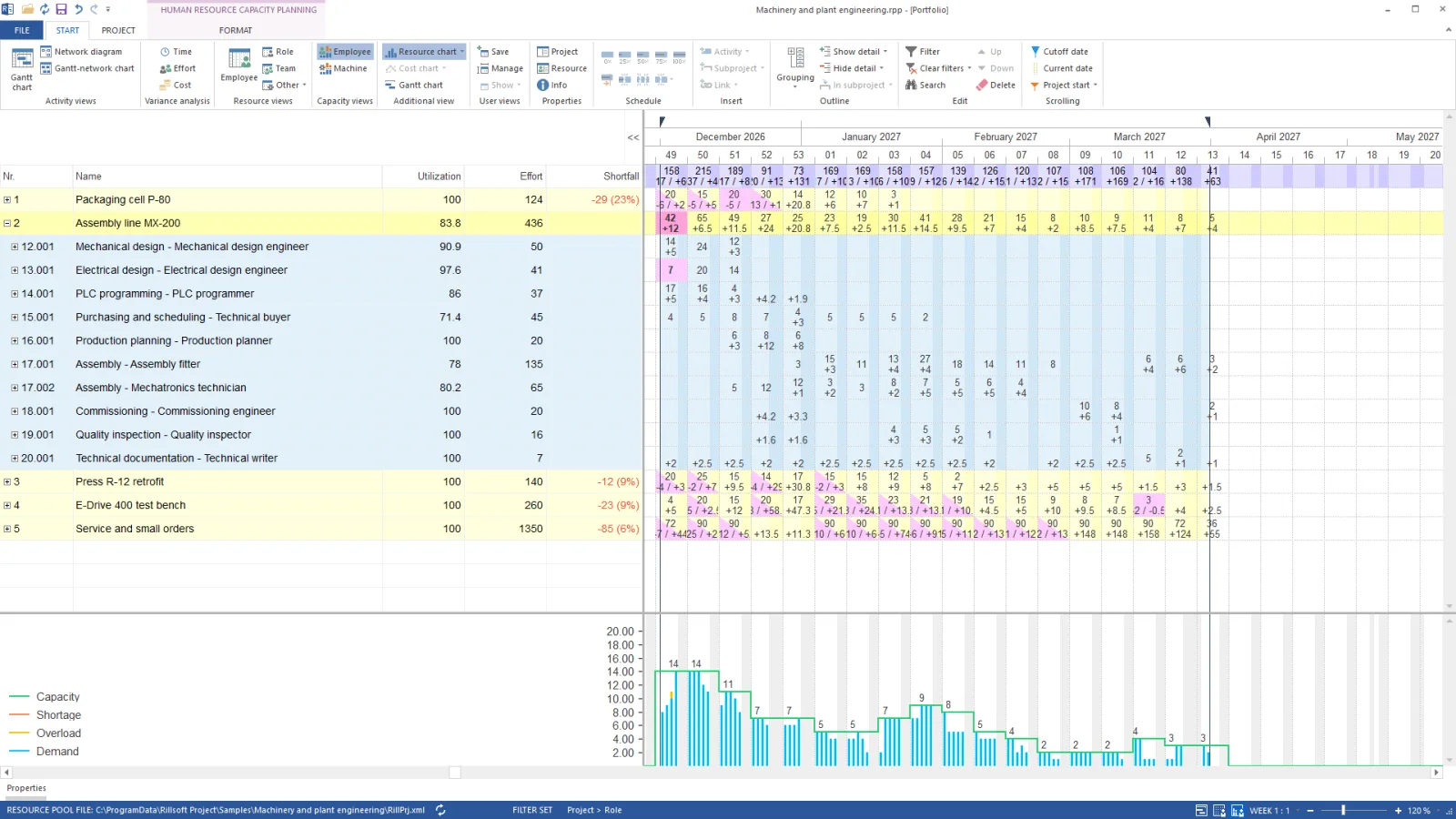
- Where is the bottleneck per role, team or machine? – demand against supply in the time grid of the capacity view, with the shortfall as the answer.
- Who could take this task? – candidates with availability, free capacity, cost and schedule conflict, before a person is named.
- How far does the plan deviate from the baseline? – comparison for time, effort and cost, progress per task and status date.
What is reachable from the cloud
Through the local MCP server, the AI assistant reaches the objects of your tenant in the Rillsoft Integration Server – exactly those that Rillsoft Project offers in its own dialogs:
- Projects – read the tenant’s project list, open a project, edit it and write it back as a new version, or store it as a new project in a folder.
- Documents – list the documents of the open project, download them, attach files to a task or subproject, describe and delete them – with the user’s server roles for document management.
- Portfolios – list the tenant’s portfolios, create, change, open them without dialogs, evaluate them and write changed projects back.
- Folders – read the project folder tree, create, rename, move and delete folders.
On top of that come all tools on the open project itself: structure, capacity analysis, staffing, baseline and actual data.
What stays the same
- The Integration Server’s permissions apply. The AI assistant can only do what the signed-in user may do in Rillsoft Project – tenant, roles and write permissions remain the server’s business.
- Rillsoft Project computes, the AI reads. Dates, workload and the critical path are still computed by the scheduling engine; the tools read the result.
- Every change to the project is one undo step. Without read-only mode, every mutating call on the open project is exactly one step that Ctrl+Z takes back. In the cloud a new project version is created only when you save – as with any edit in Rillsoft Project. Folders, documents and portfolios are changed by the assistant directly on the server, with the same permissions you have in the dialog.
- Read-only mode prevents changes via MCP. With “Read-only access” set, the server offers reading tools only; mutating calls are rejected with a clear error.
- Privacy, considered separately. The MCP server sends nothing and is reachable only on your machine. Independently of that, your AI client processes the content you show it under its provider’s rules – check them before handing project data to an AI service. For the operation of Rillsoft Cloud, the privacy policy continues to apply.
Requirements
- An account in Rillsoft Cloud with access to the tenant – the free trial is enough.
- Rillsoft Project 10 on Windows, installed locally and signed in to the Integration Server of your tenant. Earlier versions have no MCP server.
- An MCP client that speaks the Model Context Protocol over Streamable HTTP – Claude and Codex are verified.
- The explicit activation: in the settings of Rillsoft Project 10, on the “MCP Server” page, tick “Enable MCP server”. There you also choose “Read-only access” and, if needed, an API key for multi-user or terminal-server machines.
Continue on the Rillsoft AI hub
Guides, prompts and developer documentation live on the AI hub rillsoft.ai (coming soon):
- Get started – enable the server, connect a client, first safe call.
- Prompts – proven questions for the open project, from delayed tasks to projects competing for resources.
- Developers – tool contract, schemas and error codes for scripts and your own integrations.
Frequently asked questions
Does Rillsoft Cloud operate an AI?
No. Rillsoft Cloud is the Integration Server hosted by Rillsoft with your project data; it contains neither an AI service nor an MCP endpoint. The MCP server runs in Rillsoft Project 10 on the planner's machine, and the AI assistant is the client you choose yourself.
Is the MCP server part of the Rillsoft Integration Server?
No. It belongs to Rillsoft Project 10 and runs locally on your machine, reachable only at 127.0.0.1. The Integration Server in the cloud sees only the usual requests from Rillsoft Project – with the user's sign-in and permissions.
Do I have to enable the MCP server?
Yes, explicitly. As long as you do not enable it, there is no open port. You switch it on in the settings of Rillsoft Project 10 on the “MCP Server” page with “Enable MCP server”.
Can I restrict access to reading?
Yes. With “Read-only access” on the same settings page, the server offers reading tools only. The AI assistant can then evaluate but change nothing via MCP; mutating calls are rejected with a clear error.
Do other users see my AI requests?
No. The connection between AI client and MCP server stays on your machine; Rillsoft Cloud only receives the usual read and write requests from Rillsoft Project. What your AI provider does with your input is governed by its privacy policy – not by Rillsoft Cloud.
Can the AI change projects on the server?
Only without read-only mode and only within your permissions in the Integration Server. Changes to the open project are individual undo steps that Ctrl+Z takes back; in the cloud a new project version is created only when you save. Folders, documents and portfolios are changed by the assistant directly on the server – with the same permissions you have in the dialog.
Do I need an installation?
Yes. The MCP server is part of Rillsoft Project 10 on Windows and is not provided by Rillsoft Cloud. In addition you need an MCP client such as Claude or Codex on the same machine.
Does it work with the sandbox tenant?
Yes. A sandbox tenant with an industry example is an ordinary tenant with synthetic data – ideal for trying the AI assistant on a resource pool, projects and a portfolio without using your own data.
Try Rillsoft Cloud for free
The AI assistant needs projects to work on. Try Rillsoft Cloud for free and choose a sandbox tenant with an industry example when you register – a ready-made resource pool with projects and a portfolio on which the first questions to the assistant can be tried without your own data. The cloud features at a glance: collaboration, Integration Server and cloud features.